
GoodNotes Sticker Packs Free Download (2026)
The best free kawaii sticker packs for GoodNotes in 2026 — download transparent PNGs, import in seconds, and build a beautiful digital journal.
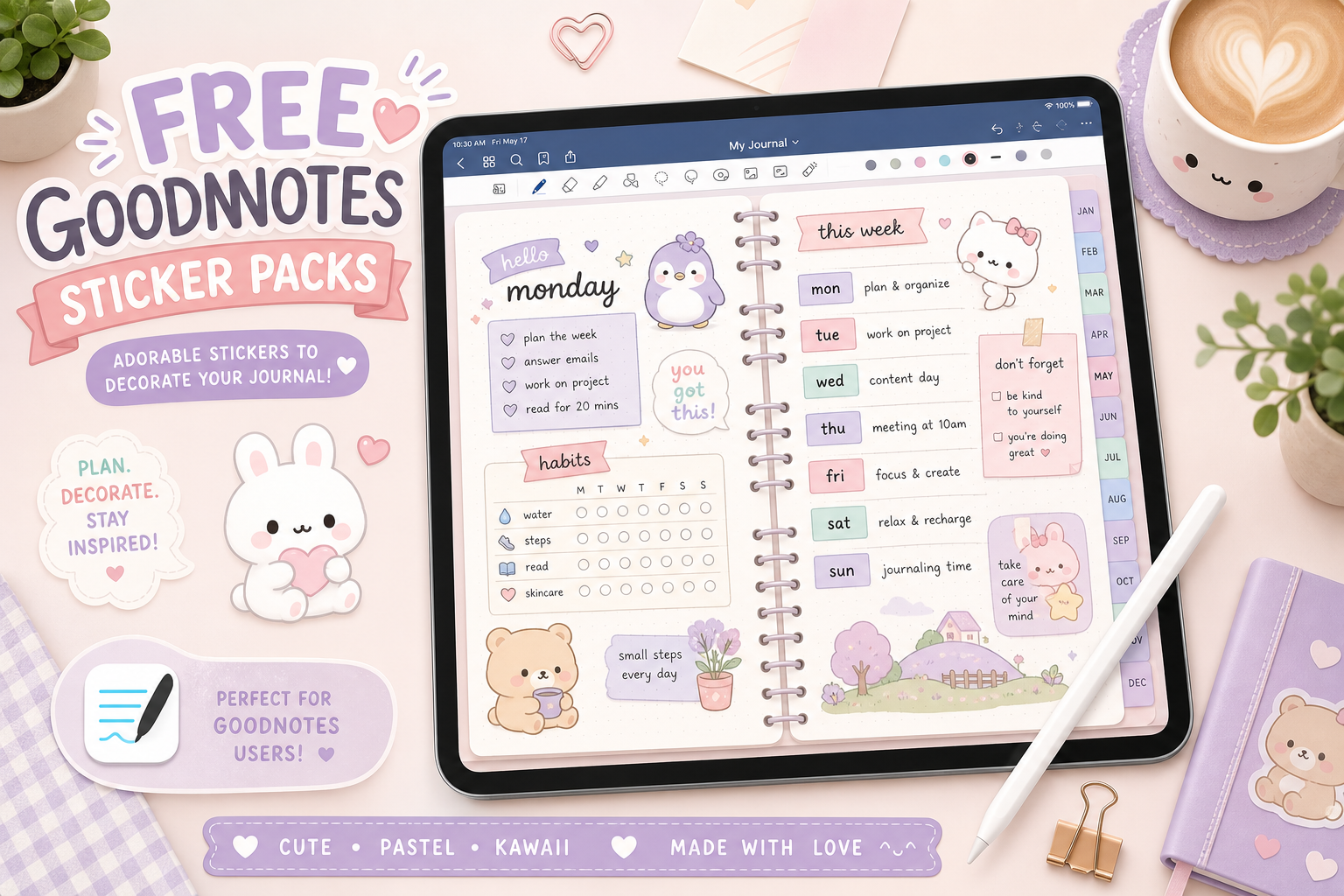
The best GoodNotes sticker packs are free
If you've been searching for GoodNotes sticker packs to download for free — you're in the right place. Every pack on this site is free, available as transparent PNG files, and designed to work perfectly in GoodNotes 6, Notability, Goodnotes 5, and any other digital journaling app that accepts PNG imports.
No email required, no membership, no watermarks. Just download, import, and start decorating.
Why PNG is the right format for GoodNotes
When using stickers digitally, always choose PNG over PDF. PNG files support transparent backgrounds — meaning when you place a sticker on your journal page, the area around the sticker character is invisible rather than showing as a white box. This is what makes digital stickers look "native" to the page rather than pasted on.
All packs on this site include a PNG download option. The PNG version typically gives you individual sticker files (one PNG per sticker) or a transparent spritesheet, both of which import cleanly into GoodNotes.
The best free packs for GoodNotes users
Kawaii Days — day-of-week labels
Kawaii Days is the most-used pack in digital planner setups. 28 transparent PNG stickers — four adorable animal friend variants for each day of the week — let you label your weekly spreads with a different kawaii companion every day.
In GoodNotes, place these at the top of weekly spread columns. They're sized to work with standard digital planner templates, and having four variants per day means you can rotate through them and keep weekly spreads visually fresh for months.
Kawaii Months — monthly headers
Kawaii Months covers the full year: 12 monthly header stickers, each featuring a seasonal chibi bear in a matching color palette. January through December, each with a distinct mood and color story.
These are perfect for monthly cover pages in digital planners. Create a template page with just the monthly header sticker at the top, and all 12 months instantly have a distinct, beautiful identity. Save each as a separate notebook template in GoodNotes for easy access.
Study Buddy — for students and work planners
Study Buddy — 18 stationery-themed kawaii stickers — is one of the most useful packs for digital academic planners. It includes books, pens, pencil cases, motivational icons ("you've got this," "study time," "brain break"), and stationery items that make study journals and project trackers feel encouraging.
For university students: import Study Buddy into a GoodNotes collection named for the current semester. Use it consistently across lecture notes, revision pages, and weekly study plans for a cohesive aesthetic.
Cloud Cats — for decoration and mood spreads
Cloud Cats — 9 chibi cats in soft pinks and lilac — is the go-to pack for mood tracker pages, gratitude journals, and any spread where you want warmth and personality without a specific functional theme.
In GoodNotes, these work especially well in the sidebar notes sections of weekly spreads, or as decorative anchors on monthly cover pages. A Cloud Cats sticker in the corner of a mood log page gives the whole page a different emotional register — lighter, more personal.
How to import PNG stickers into GoodNotes (step by step)
- Download the PNG pack from this site — you'll get a zip file with individual PNG sticker files
- Unzip the file using the Files app on iPad (long-press the zip, tap "Open", then "Extract")
- Open GoodNotes and tap the sticker icon in the toolbar (the star-shaped button)
- Tap the "+" icon to create a new sticker collection
- Name your collection (e.g., "Kawaii Days", "Cloud Cats", or whatever works for your system)
- Open Files in split-screen next to GoodNotes (swipe up from bottom to open the dock, drag Files to the side)
- Long-press each PNG and drag it into the GoodNotes sticker collection — they'll appear as individual importable stickers
- Repeat for each sticker in the pack
The whole process for a 28-sticker pack takes about 3–4 minutes. Once imported, every sticker is available instantly from the toolbar for the lifetime of your GoodNotes installation.
Organizing your GoodNotes sticker library
The more packs you import, the more valuable a good organization system becomes. Rather than one massive "stickers" collection, use a collection per pack or per theme:
- Weekly — Kawaii Days (day labels)
- Monthly — Kawaii Months (month headers)
- Study (Study Buddy pack)
- Cats & Mood (Cloud Cats)
- Finance (Money Basics or Blueberry Finance)
- Decoration (everything else)
This makes it easy to find the right sticker mid-journaling session without scrolling through hundreds of options.
Tips for using stickers in GoodNotes like a pro
Resize consistently: Pick a standard size for each sticker type (e.g., always use day-label stickers at exactly 80pt wide) and stick to it across your journal. Consistency makes spreads look designed rather than assembled.
Use the lasso tool to adjust groups: If you place four stickers and they need to move together, use the lasso to select all four and drag them as a unit.
Save custom arrangements as new stickers: If you create a sticker cluster you love (a header arrangement, a corner decoration), group it with the lasso, then save the selection as a new sticker. It becomes reusable across your whole journal.
Lock your template layer: If you use digital planner templates, lock the template page as the background so you don't accidentally drag the template while placing stickers.
You might also enjoy
- Using Digital Stickers in GoodNotes Like a Pro — the complete GoodNotes sticker guide
- How to Use Kawaii Stickers in Your Bullet Journal — ideas for every bullet journal section